
Variant constants
Variant constants are four per-variant overrides: Min InventoryMin inventoryA per-variant minimum stock level you set as an override. Displayed on the Forecast page's In Stock cell and used by min/max replenishment workflows. Does not change the forecast model's reorder math. Read more → , Max InventoryMax inventoryA per-variant maximum stock level you set as an override. Displayed on the Forecast page's In Stock cell and used by min/max replenishment workflows. Read more → , Target InventoryTarget inventoryA per-variant target stock level you set as an override. Used by min/max replenishment workflows as the "refill to" target. Read more → , and Static Reorder PointStatic reorder pointA fixed reorder point you set yourself, instead of letting the model compute one. Display + threshold-filter only: the forecast model uses its own computed reorder point in reorder math. Read more → . Use them when a SKU should be constrained by your business rules: a product you never want below 50, or never above 500.
On this page
Section titled “On this page”- What variant constants are
- Where to set them
- Cross-field validation
- How they show on the Forecast page
- What they do not do
- Bulk import
- See also
What variant constants are
Section titled “What variant constants are”Per-variant numeric overrides, one set per variant (or per variant × location). They tell Logistified your business limits for stock at a given location:
- Min Inventory: the smallest stock level you want.
- Max Inventory: the largest stock level you want.
- Target Inventory: the level you refill to.
- Static Reorder Point: a fixed reorder point you set yourself, instead of the model’s computed one.
Optionally configurable per location too.
Where to set them
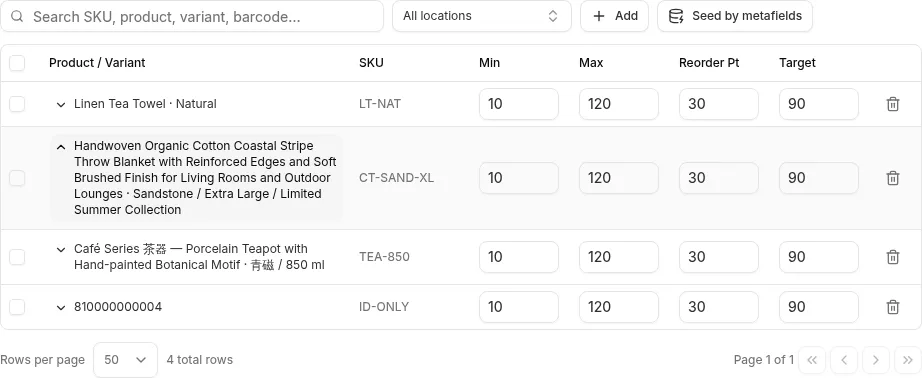
Section titled “Where to set them”Variant constants live on a dedicated settings page: Settings → Products → Variant Constants. A grid where you can edit many rows at once, or import via CSV/XLSX through the unified import flow.
The forecast page only displays the constants; the Min / Max / Target / Static Reorder Point columns are read-only there. You can’t edit a value by clicking the cell on the Forecast page; head to the settings page to make changes.
Reading names in the table editor
Section titled “Reading names in the table editor”Product and variant names use up to two lines. Click or tap the chevron beside a name to expand it within the same row and read the full name; use it again to collapse the name. You can expand several rows independently. Hover over the name button or focus it with the keyboard to see the full name in a tooltip. With the button focused, press Enter or Space to expand or collapse it.
For stores with one active location, the Location column is hidden when every row shown belongs to that location, giving names more room. The location filter remains available. Rows for another or inactive location keep the column visible, and filtering a store with several active locations down to one does not hide it. Expanding a name does not change your values or row selection.
Cross-field validation
Section titled “Cross-field validation”Logistified enforces three rules so the values stay internally consistent:
- Min ≤ Max
- Min ≤ Reorder Point ≤ Max
- Reorder Point < Target ≤ Max
If a rule is violated, the row turns red and the save is blocked until fixed.
How they show on the Forecast page
Section titled “How they show on the Forecast page”Once a variant has a Max Inventory, the In Stock cell shows a read-only fill bar under the number. The full width of the bar is your Max; the fill is your current stock, with thin markers at the Min, Static Reorder Point, and Target you’ve set. The fill color signals where current inventory sits:
| Color | Meaning |
|---|---|
| Red | Below Min. |
| Amber | At or above Min, but below Static Reorder Point or Target. |
| Green | At or above Min, Static Reorder Point, and Target. |
Variants without a Max Inventory show no bar. Hover the cell for the breakdown: its Thresholds scale places your current stock against each constant you’ve set, labelled Min, Reorder, Target, and Max.
The bar is part of the Standard view. In the Supply view, the In Stock cell shows only two lines of text (available and incoming stock) with no bar and no colours; hover it for the same breakdown. There, a variant’s period card also draws the constants you’ve set as dashed lines in its stock chart, labelled Min, Max, Target, and Reorder; see The chart.
What they do not do
Section titled “What they do not do”Variant constants are display + alerting only for the forecast page. They don’t change the forecast model’s reorder math.
- The reorder math (Reorder Point, Reorder Date, Reorder Quantity) uses the forecast model’s computed values plus the supplier link’s lead time, MOQ, and pack size.
- Static Reorder Point is only used for threshold filters, the In Stock cell, and the dashed line in the Supply view’s card chart. The forecast still computes its own reorder point in parallel.
- Min / Max / Target are consumed by the separate “Create PO from min/max” workflow on the Suppliers list, and by the “Create TO from min/max” workflow under Transfer Orders.
Bulk import
Section titled “Bulk import”For larger catalogs, use the import flow. Settings → Products → Variant Constants → Import. Map columns, preview, commit. See Guides → Import data (CSV/XLSX) for the full walkthrough.
The optional Import action column controls each row:
- Leave it blank or use
UPDATEto save the supplied values. Blank value cells preserve existing constants. - Use
DELETEto remove Min, Max, Static Reorder Point, and Target Inventory for that variant and location. The preview marks deletions and asks for confirmation before applying them.
Rows are applied in file order. If the same variant and location appears more than once, the last successfully applied row determines the final state.
The bulk grid and the import flow are the only ways to edit variant constants; there’s no inline-editing path from the Forecast page.
See also
Section titled “See also”- Forecast → Forecast view table: where the variant overrides show up.
- Forecast → Reorder suggestions: the math that does not use these overrides.
- Guides → Import data (CSV/XLSX): bulk import.