
Purchase orders
A purchase orderPurchase orderA supplier order that records what you're buying (variants, quantities, prices, due dates) and the lifecycle from draft through sending, receiving, and closing. Read more → records what you’re buying from one supplier (variants, quantities, prices, due dates) and the lifecycle of that order from draft through received and closed. POs are the single largest workflow in Logistified; this section breaks the surface into focused pages.
A purchase order is not a transfer order. POs go to a supplier and bring inventory in. Transfer orders move existing stock between your own locations.
On this page
Section titled “On this page”- What a purchase order is
- Supplier PO reference
- Shipping cost
- When to use one
- What you can do here
- Key concepts
- Where to next
What a purchase order is
Section titled “What a purchase order is”A PO has a single supplier and many line items. Each line is one variant with its quantities (ordered, confirmed, received, cancelled, rejected), unit cost, and any per-line metadata. The header tracks status, dates, currency, tax rate, and totals.
Under the order’s title, a byline records who raised it (Created by First Last · 7 Sep 2026, 14:32) with that person’s email address on hover. Orders created before Logistified started recording this show only the date. The same information is available as a Created by column and filter on the purchase order list; see Search, filters & saved views.
POs are stateful: status changes (Draft to Sent to Confirmed to Received to Completed) trigger side effects in Shopify, the supplier’s inbox, and elsewhere in Logistified. The Side effects & integrations page is the full list.
Receiving is quantity-based. You can record a full receipt or receive the same PO in multiple passes as stock arrives. Separately, you can track each physical delivery (carrier, tracking number, status, dates, and which line items are in it) as shipments on the order.
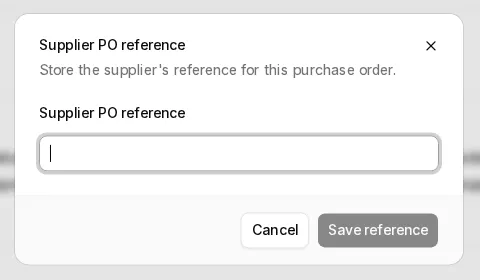
Supplier PO reference
Section titled “Supplier PO reference”In Order Information, click the reference beneath Supplier to edit it, or choose Add supplier PO reference… when it is empty. Enter the supplier’s reference and select Save reference. To remove it, clear the field and save. Cancel keeps the saved reference.
The separate copy icon copies the full reference. Editing follows the same rules as Edit Details: it is unavailable while an order is On Hold, Disputed, Completed, or Cancelled, but an existing reference can still be copied.
Shipping cost
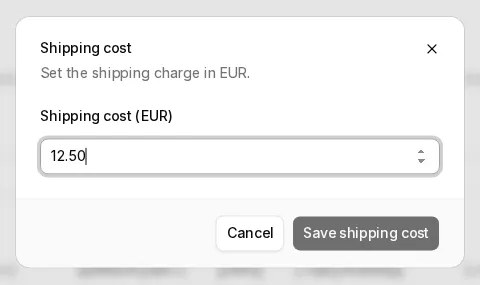
Section titled “Shipping cost”In Order Information → Financial Summary, click the amount beside Shipping, even when it is zero. Enter the cost in the order currency shown above the field and select Save shipping cost. Clear the field or enter 0 to remove the shipping charge. Cancel keeps the saved amount.
Shipping follows the same editing rules as Edit Details: it is unavailable while the order is On Hold, Disputed, Completed, or Cancelled. Tax, totals and landed costs follow your existing settings. Use Add cost / discount for other charges.
When to use one
Section titled “When to use one”- Replenishing stock from your supplier.
- Recording an order you’ve already placed elsewhere (manual creation; Mark as Sent (Manual) without emailing).
- Generating supplier-facing documentation (the PO PDF).
- Recording full or partial receipts as stock arrives over one or more deliveries.
What you can do here
Section titled “What you can do here”Key concepts
Section titled “Key concepts”- Purchase orderPurchase orderA supplier order that records what you're buying (variants, quantities, prices, due dates) and the lifecycle from draft through sending, receiving, and closing. Read more → : the artifact itself.
- Line itemLine itemOne row on a purchase, transfer, or return order. Represents one variant with its quantities, unit cost, and any per-line metadata. Read more → : one variant on the PO.
- OrderedOrdered quantityThe number of units you asked the supplier for on a purchase order line. Set when you create the PO; locked once you send it. Read more → , confirmedConfirmed quantityThe number of units the supplier said they'll ship. Could be less than ordered if the supplier can't fulfil the whole request. Read more → ,receivedReceived quantityThe number of units you actually got. Recorded as the stock arrives. Drives Shopify's on-hand update on each receipt. Read more → , pendingPending quantityWhat's still on its way: confirmed minus already received minus cancelled and rejected. For receiving POs, Logistified also keeps received units that have not yet synced to Shopify on-hand stock in the incoming ledger so they can be retried. Read more → quantity: four ways to count units across the lifecycle.
- Originating forecast viewOriginating forecast viewThe saved view a purchase order was created from. Useful for audit: "which planning session produced this order?" Read more → : the saved view a PO was created from.
- ArchivedSoft deleteA record hidden from active workflows but retained for history or audit instead of being permanently removed. Read more → : a PO removed from the active list but kept for audit.
- Constraint StudioConstraint StudioThe guided rule editor in Settings -> Purchase Orders -> Constraints. It turns business presets into technical constraint graphs for PO hints and optimizer plans. Read more → : Elevate-plan editor for PO rules.
- Constraint optimizerConstraint optimizerA PO detail tool that builds a proposed additive plan from configured constraint rules. In Fill gaps mode, it can increase existing lines or add eligible variants; you confirm before anything is applied. Elevate-plan feature. Read more → : Elevate-plan tool that proposes additive quantity changes.
- Supplier creditSupplier creditA balance you have with a supplier, money they owe you, from a return order (RMA) or a manual adjustment. It can be deliberately applied to a future PO with the same supplier and currency. Read more → : a balance with the supplier, applicable to future POs.
Where to next
Section titled “Where to next”- Guides → Create a purchase order: end-to-end walkthrough.
- Forecast → Creating a PO from the forecast: turn selected reorder rows into draft POs.
- Guides → Configure purchase-order constraints: Product MOQ and CBM examples.
- Guides → Receive inventory: the full and partial receipt flow.
- Forecast → Reorder suggestions: how the suggested quantities are built.
- Suppliers → Supplier–variant mapping: the supplier links, cost, MOQ, and primary supplier data that PO creation can use.
- Inventory → Incoming reconciliation: fix drift between expected incoming and Shopify’s incoming counter.
- Reports → Purchase Order Report: scheduled summaries for overdue and arriving POs.
- Purchase Orders → Preferences and Settings: runtime toggles and configuration pages.
- Settings → Accounting: connect Xero to sync bills automatically.